Search This Blog

Showing posts with label Application. Show all posts

Wednesday, 15 November 2017

RAISE_APPLICATION_ERROR

The RAISE_APPLICATION_ERROR is actually a procedure defined by Oracle that allows the developer to raise an exception and associate an error number and message with the procedure. This allows the application to raise application errors rather than just Oracle errors. Error numbers are defined between -20,000 and -20,999. All other numbers belong to Oracle for its own errors. The message can be anything that will fit in a varchar2(2000).

RAISE_APPLICATION_ERROR can be used in either (or both) the executable section and the exception section of a PL/SQL program. The error number and message is displayed to the user.

Syntax:
RAISE_APPLICATION_ERROR ({error_number}, {error_message});

{error_number} - The Error number must be between -20000 and -20999

{error_message} - The Error message is the message you want to display when the error occurs


Using in Execution section

BEGIN
...
RAISE_APPLICATION_ERROR (-20001,'This is a user error message');
...
END;


Using in  Exception section:

BEGIN
...
EXCEPTION
    WHEN NO_DATA_FOUND THEN
    RAISE_APPLICATION_ERROR (-20003, 'This is another user error message');
END;


Examples:

Input:
DECLARE 
    l_number    NUMBER;
BEGIN
    SELECT 2 INTO l_number FROM DUAL;
    dbms_output.put_line('l_number = '||l_number);
END;

Output: 
l_number = 2

Input:
DECLARE 
    l_number    NUMBER;
BEGIN
    SELECT 2 INTO l_number FROM DUAL;
    RAISE_APPLICATION_ERROR (-20001,'This is a user error message');
    dbms_output.put_line('l_number = '||l_number);
END;

Output: 
There is no output due to our ERROR
line 19: ORA-20001: This is a user error message

ORA-06512: at line 5

Monday, 28 August 2017

Useful options that you should know about SQL Developer

1. Search Preferences 
You can easily navigate to any of SQL Developer preferences simply start typing the name of it in the search box. DO NOT HIT ENTER, this will close the preferences dialog with hit “OK” button.


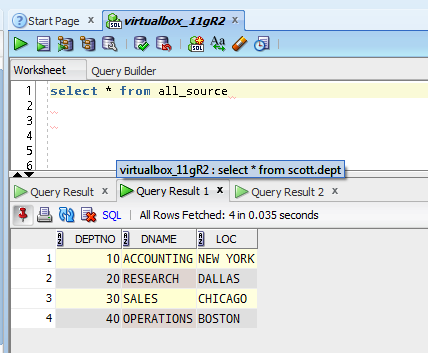
2. Database – Worksheet – Show Query Results in new tabs
Wouldn’t it be nice to keep around query results from different iterations of your query as you work through it? Enabling this feature will keep your query results open as you execute new queries. You can turn on/off with the feature with hit the red pin under ‘Query Result’.  Mouse over the ‘Query Result’ labels to see the SQL statement used to populate that grid. Of course, the more result sets you leave open, the more memory SQL Developer will need. So be sure to close them when you’re finished.

3. Open Object on Single Click
Good for n00bs, probably annoying to experienced users.


4. Hiding Database Object Types from your Connection Trees
You probably don’t work with EVERYTHING in Oracle – so set your trees to show just what you need. Less scrolling, less searching. More happy


 5. Connection Script Startup
You can setup your connection startup script (LOGIN.SQL) under Database. The contents of the script will be executed every time when the database connection is established.


Search This Blog